Microsoft Entra ID Single Sign-On (SSO)
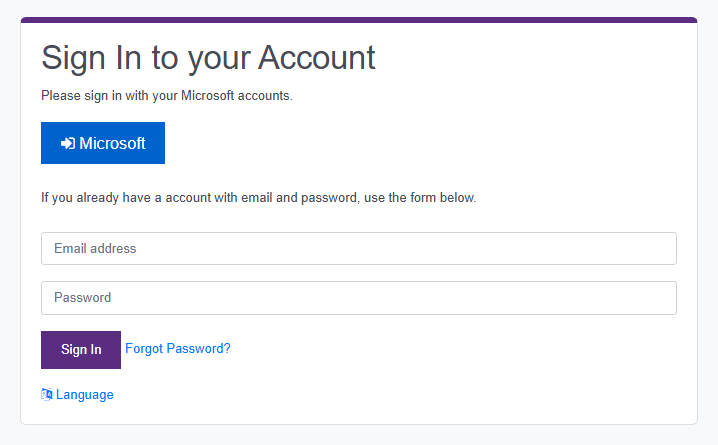
ParkPow On-premises supports Single Sign-On (SSO) with Microsoft Entra ID (formerly Azure Active Directory). When enabled, a Microsoft button appears on the login page, and users sign in with their corporate Microsoft account instead of a separate ParkPow password.
| Section | Description |
|---|---|
| Requirements | What you need before you start. |
| Register ParkPow in Microsoft Entra ID | Create the app registration and collect its credentials. |
| Configure ParkPow | Add the SSO environment variables to docker-compose.yml. |
| Environment Variables | Reference for each SSO setting. |
| Default Role for New Users | Choose the role given to users on their first Microsoft sign-in. |
| How Sign-In Works | How ParkPow creates, links, and rejects SSO users. |
| Troubleshooting | Error messages and how to fix them. |
Requirements
- The latest version of ParkPow On-premises. Follow the upgrade procedure if needed.
- Permission to create app registrations in the Microsoft Entra admin center.
- ParkPow served over HTTPS. Microsoft Entra ID only accepts
https://redirect URIs, except forhttp://localhost. See HTTPS configuration. - An existing ParkPow organization. Create the first account with the regular email and password sign-up before enabling SSO. All SSO users join this organization.
Register ParkPow in Microsoft Entra ID
-
Sign in to the Microsoft Entra admin center and go to Entra ID > App registrations.
-
Click New registration and fill in the form:
-
Name: any name, for example
ParkPow. -
Supported account types: select one of the following options:
Option Who can sign in DJANGO_MICROSOFT_TENANT_IDAccounts in this organizational directory only (Single tenant) Only accounts from your company's Microsoft Entra ID. Your Directory (tenant) ID Accounts in any organizational directory and personal Microsoft accounts Work, school, and personal Microsoft accounts (for example, Outlook.com). commonWith either option, ParkPow accepts only the email domains listed in
DJANGO_SSO_ALLOWED_EMAIL_DOMAINS. If only your company accounts need to sign in, choose Accounts in this organizational directory only. -
Redirect URI: select the Web platform and enter the ParkPow callback URL:
Redirect URIhttps://YOUR_PARKPOW_DOMAIN/accounts/microsoft/login/callback/Replace
YOUR_PARKPOW_DOMAINwith the domain or IP address used to access ParkPow, the same value configured in Organization Domain.For testing on the same machine where ParkPow runs, use
http://localhost:8000instead. This is the only case where Microsoft Entra ID acceptshttp://:Redirect URI for testinghttp://localhost:8000/accounts/microsoft/login/callback/Access ParkPow at
http://localhost:8000during the test. Signing in from another address, such ashttp://127.0.0.1:8000, causes a redirect URI mismatch. -
-
Click Register. On the Overview page, copy the following values:
- Application (client) ID: used as
DJANGO_MICROSOFT_CLIENT_ID. - Directory (tenant) ID: used as
DJANGO_MICROSOFT_TENANT_IDwhen the app registration is Single tenant.
- Application (client) ID: used as
-
Go to Certificates & secrets > Client secrets and click New client secret. Copy the secret Value (not the Secret ID). It is used as
DJANGO_MICROSOFT_CLIENT_SECRET.
Microsoft shows the client secret value only once. Copy it before leaving the page. Client secrets also expire; create a new one and update docker-compose.yml before the expiration date, or users will not be able to sign in.
Configure ParkPow
-
Open the
docker-compose.ymlfile of your ParkPow On-premises installation. -
Add the SSO variables to the
environmentsection of thewebservice:docker-compose.ymlservices:
web:
environment:
# ...existing variables...
- DJANGO_SOCIALACCOUNT_ADAPTER=microsoft
- DJANGO_MICROSOFT_TENANT_ID=YOUR_TENANT_ID
- DJANGO_MICROSOFT_CLIENT_ID=YOUR_CLIENT_ID
- DJANGO_MICROSOFT_CLIENT_SECRET=YOUR_CLIENT_SECRET
- DJANGO_SSO_ALLOWED_EMAIL_DOMAINS=yourcompany.com
- DJANGO_SSO_REQUIRE_EXISTING_USER=FalseReplace
YOUR_TENANT_ID,YOUR_CLIENT_ID, andYOUR_CLIENT_SECRETwith the values copied in Register ParkPow in Microsoft Entra ID. If the app registration accepts personal Microsoft accounts, setDJANGO_MICROSOFT_TENANT_ID=commoninstead of the tenant ID. Replaceyourcompany.comwith the email domain of your users.dangerDJANGO_MICROSOFT_CLIENT_SECRETgrants access to your app registration. Never share it or commitdocker-compose.ymlwith this value to source control. -
Restart the services to apply the changes:
Recreate the ParkPow containersdocker compose up -d --force-recreate -
Open the ParkPow login page. The Microsoft button is now displayed above the email and password form.
Environment Variables
DJANGO_SOCIALACCOUNT_ADAPTER
Required. Set to microsoft to enable the ParkPow SSO sign-in rules: domain allow-list, existing-user check, and default role.
DJANGO_MICROSOFT_CLIENT_ID
Required. The Application (client) ID of the app registration. The Microsoft sign-in is disabled while this value is empty.
DJANGO_MICROSOFT_CLIENT_SECRET
Required. The client secret Value of the app registration.
DJANGO_MICROSOFT_TENANT_ID
Optional. The Directory (tenant) ID of your Microsoft Entra ID. Default: common, which accepts accounts from any Microsoft Entra tenant and personal Microsoft accounts. Set it to your tenant ID to accept only accounts from your organization.
The value must match the Supported account types of the app registration:
- Accounts in this organizational directory only: use your tenant ID.
- Accounts in any organizational directory and personal Microsoft accounts: use
common.
DJANGO_SSO_ALLOWED_EMAIL_DOMAINS
Required. A comma-separated list of email domains allowed to sign in with Microsoft, for example yourcompany.com,subsidiary.com. The comparison is case-insensitive.
- When empty or not defined (the default), all Microsoft sign-ins are rejected, including when
DJANGO_MICROSOFT_TENANT_IDiscommon. Users see the message "Your organization is not authorized to sign in here." - The domain is checked on every sign-in. Removing a domain also blocks users from that domain who have already signed in.
When DJANGO_MICROSOFT_TENANT_ID is common, ParkPow accepts accounts from any Microsoft Entra tenant and personal Microsoft accounts, and this variable is the only filter. If you list a public email domain, such as outlook.com or hotmail.com, anyone with a Microsoft account on that domain can sign in. With DJANGO_SSO_REQUIRE_EXISTING_USER=False, these users are created automatically with the default role.
To reduce this risk:
- List only domains that your company controls.
- If you need to accept public email domains, set
DJANGO_SSO_REQUIRE_EXISTING_USER=Trueand invite each user. - Keep the default role as Viewer.
DJANGO_SSO_REQUIRE_EXISTING_USER
Optional. Default: False.
False: any user from an allowed domain is created automatically on their first Microsoft sign-in.True: only users who already have a ParkPow account (for example, users invited by an admin) can sign in. Other users are rejected.
Default Role for New Users
By default, users created on their first Microsoft sign-in receive the Viewer role. Organization admins can change this role in Settings > Account Management > Edit General Settings > Default role for new SSO users.

The available roles are Viewer (default), Operator, Executive, and Admin. See Roles for the permissions of each role.
- The role applies only when a user is created. Existing users are not changed; edit them in Settings > Users.
- New SSO users get access to all sites of the organization.
- The field is displayed only when Microsoft SSO is enabled.
How Sign-In Works
When a user clicks the Microsoft button and signs in to Microsoft, ParkPow applies the following rules:
- The user's email domain must be listed in
DJANGO_SSO_ALLOWED_EMAIL_DOMAINS. - If a ParkPow user with the same email already exists in the organization, the Microsoft account is linked to it. The user keeps their current role and can sign in with either method.
- If no user exists and
DJANGO_SSO_REQUIRE_EXISTING_USER=False, ParkPow creates the user in the organization with the default role. - If no user exists and
DJANGO_SSO_REQUIRE_EXISTING_USER=True, the sign-in is rejected.
Troubleshooting
| Message | Cause | Solution |
|---|---|---|
| Single sign-on is not configured for this deployment. | No organization exists yet. | Create the first account with the email and password sign-up, then sign in with Microsoft. |
| Your organization is not authorized to sign in here. | The email domain is not in DJANGO_SSO_ALLOWED_EMAIL_DOMAINS, or the email belongs to a user of another organization. | Add the domain to DJANGO_SSO_ALLOWED_EMAIL_DOMAINS and recreate the containers. |
| Your account has not been provisioned. Please contact your administrator. | DJANGO_SSO_REQUIRE_EXISTING_USER=True and the user has no ParkPow account. | Invite the user, or set DJANGO_SSO_REQUIRE_EXISTING_USER=False. |
Microsoft shows a redirect URI mismatch error (AADSTS50011). | The redirect URI in the app registration does not match the ParkPow URL. | Check the protocol, domain, port, and trailing slash of the redirect URI. |
Microsoft shows an error saying the application is not configured as a multi-tenant application (AADSTS50194). | DJANGO_MICROSOFT_TENANT_ID is common, but the app registration accepts only accounts from your organization. | Set DJANGO_MICROSOFT_TENANT_ID to your tenant ID, or change the supported account types to include personal Microsoft accounts. |
| The Microsoft button is not displayed. | DJANGO_MICROSOFT_CLIENT_ID is empty or the containers were not recreated. | Check the variable and run docker compose up -d --force-recreate. |
| The Default role for new SSO users field is not displayed. | DJANGO_SOCIALACCOUNT_ADAPTER is not set to microsoft. | Set the variable and recreate the containers. |
Summary
- Register ParkPow in Microsoft Entra ID with the redirect URI
https://YOUR_PARKPOW_DOMAIN/accounts/microsoft/login/callback/. - Always set
DJANGO_SOCIALACCOUNT_ADAPTER=microsofttogether with the Microsoft client ID and secret. - List your email domains in
DJANGO_SSO_ALLOWED_EMAIL_DOMAINS; when empty, all Microsoft sign-ins are rejected. - Create the first account with email and password before enabling SSO. All SSO users join this organization.
- Choose the default role for new SSO users in the organization settings. Existing users are not changed.