Alerts
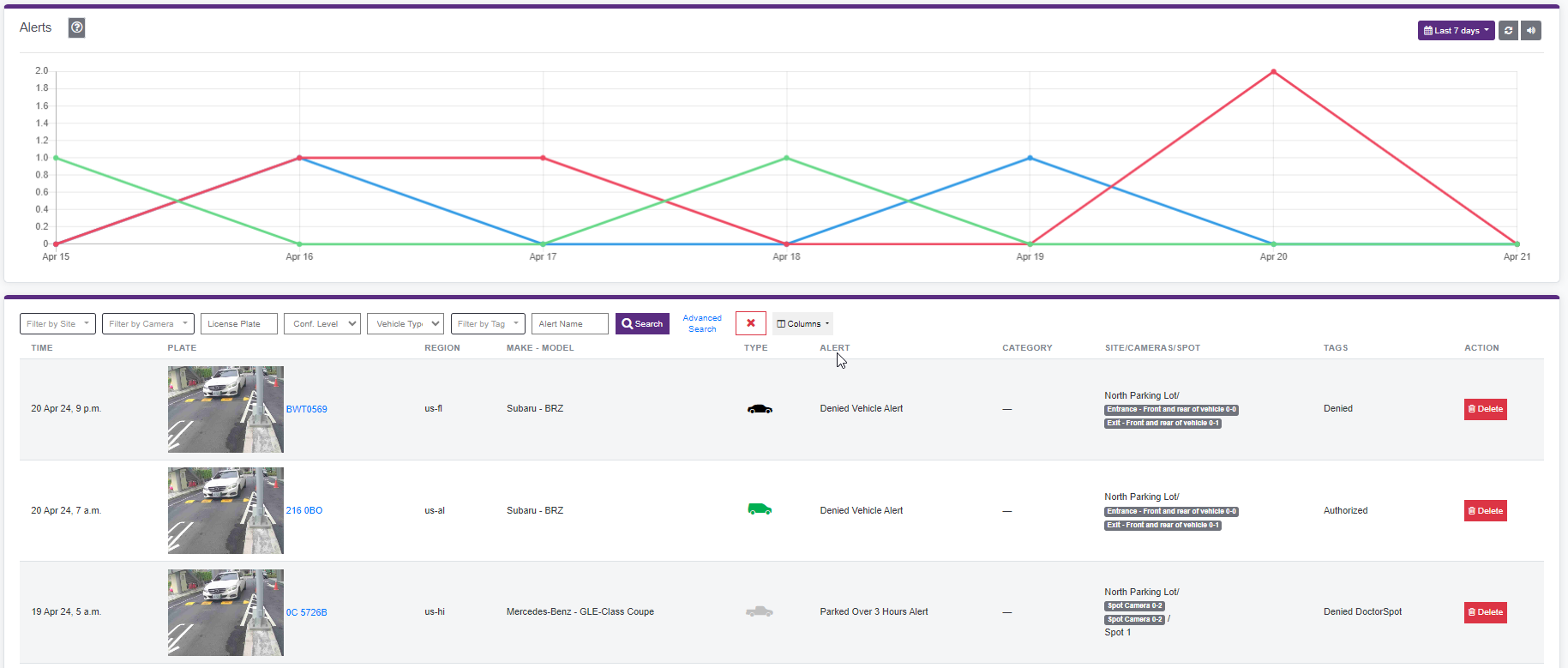
The Alerts page displays all triggered alerts based on your configured alert templates. Feel free to see examples of Alerts and instructions on how to set up an Alert.
Alert Timeline Chart
At the top of the page, a timeline chart visualizes alert frequency over the selected time period, helping you identify patterns and trends in alert activity.
Time Period Selection
By default, alerts are displayed for the Last 7 days. You can customize the time period by clicking the date selector button in the top-right corner to:
- Select predefined periods (e.g., last 24 hours, last 7 days, last 30 days)
- Choose a custom date range
Monitoring Features
- Automatic Refresh: Click the refresh icon to enable automatic page refresh and keep alert data current in real-time
- Audible Signal: Click the speaker icon to enable sound notifications for new alerts, useful for permanent monitoring mode
Filtering Alerts
The Alerts page provides multiple filter options to help you find specific alerts:
Basic Filters
- Filter by Site: Filter alerts by specific site locations
- Filter by Camera: Filter alerts by specific camera sources
- License Plate: Search for alerts by specific license plate numbers
- Conf. Level: Filter by confidence level in 10% increments (e.g., Under 90%, Over 80%)
- Vehicle Type: Filter by vehicle type (car, truck, motorcycle, etc.)
- Filter by Tag: Filter by vehicle tags assigned in your system
- Alert Name: Filter by the name of the alert template that triggered the alert
Advanced Search
Click the Advanced Search button to access additional filtering options:
- Make: Filter by vehicle manufacturer
- Model: Filter by vehicle model
- Color: Filter by vehicle color (e.g., black, blue, red, white)
- Region Code: Filter by license plate region code
Search and Actions
- Click the Search button to apply your selected filters
- Use the Columns dropdown to customize which columns are displayed in the alerts table
- Click Mark all as Read to mark all visible alerts as read
Alert Table
The alerts table displays the following information for each triggered alert:
- Time: Timestamp of when the alert was triggered (e.g., "5 Nov 25, 7:45 p.m.")
- Plate: License plate number with vehicle icon
- Region: License plate region code
- Make - Model: Vehicle manufacturer and model (e.g., "Nissan - G-300")
- Type: Vehicle type classification
- Alert: Alert template name that triggered the alert (e.g., "MM Mismatch Alert")
- Category: Alert category or classification
- Site/Cameras/Spot: Location information including site name and camera identifier
- Tags: Any tags associated with the vehicle or alert
- Action: Available actions for each alert:
- Delete: Remove the alert from the list
Alert Configuration
Alerts are configured on the Alerts Settings Page. For detailed information on how to create and configure alert templates, see the Alert Settings Configuration Guide.
Alert Use Cases - Examples
The table below shows real-world scenarios you can configure using ParkPow alert templates. Each row shows the trigger condition, the business insight it gives you, the Alert Use Case to select, and the key filters to apply.
| Alert Me When… | So I'll Know… | Use Case | Key Filters |
|---|---|---|---|
| Overstay & Time Enforcement | |||
| An untagged vehicle stays for more than 1 hour in North Parking Lot | A driver (e.g. Uber, FedEx) may be lingering around the business site | Parking Duration | Site, Not in Tags, Duration |
| Any vehicle is still in any parking lot after 24 hours | How to enforce the 24-hour parking rule | Parking Duration | Duration, All Sites |
| A non-tenant vehicle stays past midnight on Friday, Saturday, or Sunday | A parking space is occupied by a visitor overnight in the apartment complex | Parking Duration | Not in Tags, Time of Day, Day of Week |
| A vehicle marked "Towed" returns and parks for more than 30 minutes | A previously towed vehicle is back and may need to be removed again | Parking Duration | Vehicle Tags, Duration |
| Arrival & Access Monitoring | |||
| A contractor vehicle just left the West Parking Lot | When to lock the entry doors | Arrival | Site, Vehicle Tags, Camera (Exit) |
| A vehicle tagged "VIP" or "Board Member" arrives at any site | Prepare the reception area or reserved spot ahead of time | Arrival | Vehicle Tags, Camera (Entrance) |
| A vehicle tagged "Denied" or "Unauthorized" is detected at any entrance | An unwanted vehicle is attempting to access the premises | Arrival | Vehicle Tags, Camera (Entrance) |
| Any vehicle arrives at the South Parking Lot between 10 PM and 6 AM on any day | After-hours activity is occurring in a restricted area | Arrival | Site, Time of Day, Camera |
| A vehicle without a license plate is detected at any entrance | A vehicle evading identification has entered the premises | Arrival | Plate = nil, Camera (Entrance) |
| On-Premise at a Specific Time | |||
| A vehicle without the "Employee" tag is still on-premise after 9 PM on weekdays | A non-employee is lingering after business hours and may need to be escorted out | On-Premise | Not in Tags, Time of Day, Day of Week |
| A delivery truck (Big Truck or Van) is still on-premise after 5 PM | A delivery that should have been completed is running late or left unattended | On-Premise | Vehicle Type, Time of Day |
| A vehicle tagged "Visitor" is still on-premise after midnight on any night | A visitor has not left and may be staying overnight without authorization | On-Premise | Vehicle Tags, Time of Day |
| Suspicious or Repeated Behavior | |||
| The same vehicle passes the entrance camera more than 3 times within 10 minutes | A vehicle is circling the premises — possibly casing the property or tailgating | Arrival Frequency | Freq. Count, Freq. Duration, Camera |
| The same untagged vehicle is detected more than 5 times in a single day across all sites | An unregistered vehicle is making repeated visits that may warrant attention | Arrival Frequency | Not in Tags, Freq. Count, Freq. Duration |
| A vehicle's detected Make/Model doesn't match its last 10 recorded visits | The license plate may have been swapped — a potential fraud or stolen plate situation | MM Mismatch | MM Mismatch, MM Score |